
Environments
Provision Docker, Kubernetes, E2B, Daytona, Modal, Vercel, and Sprites sandboxes in Service, configure templates, and mount persistent workspaces on threads.
Give an agent an environment when a task needs files, shell commands, or a desktop.
Four concepts connect the workflow:
| Concept | What you configure | Result |
|---|---|---|
| Provider | A Docker engine, Kubernetes cluster, or cloud account | Service can create instances there |
| Template | Image, CPU/memory, env vars, and idle stop/delete policy | A reusable recipe for new instances |
| Instance | A running, stopped, or reserved sandbox | Holds workspace files and processes |
| Thread mount | An instance, mount name, directory, and permissions | Makes the instance available to runs |
You can also connect a machine you already operate via outbound Envd or direct HTTP.
Workspace provisioning
Before creating anything manually, check Environments → Templates.
- Docker Compose quickstart (with Docker socket): Automatically creates a Docker provider and a Linux Sandbox template with Python, Node.js, Git, and writable
/workspace. - Source development (
make dev): Creates a Local provider and Local Workspace template undervar/dev/environments(runs directly as the Service OS user without isolation).
For custom defaults or locally built images, see workspace provisioning configuration.
Providers
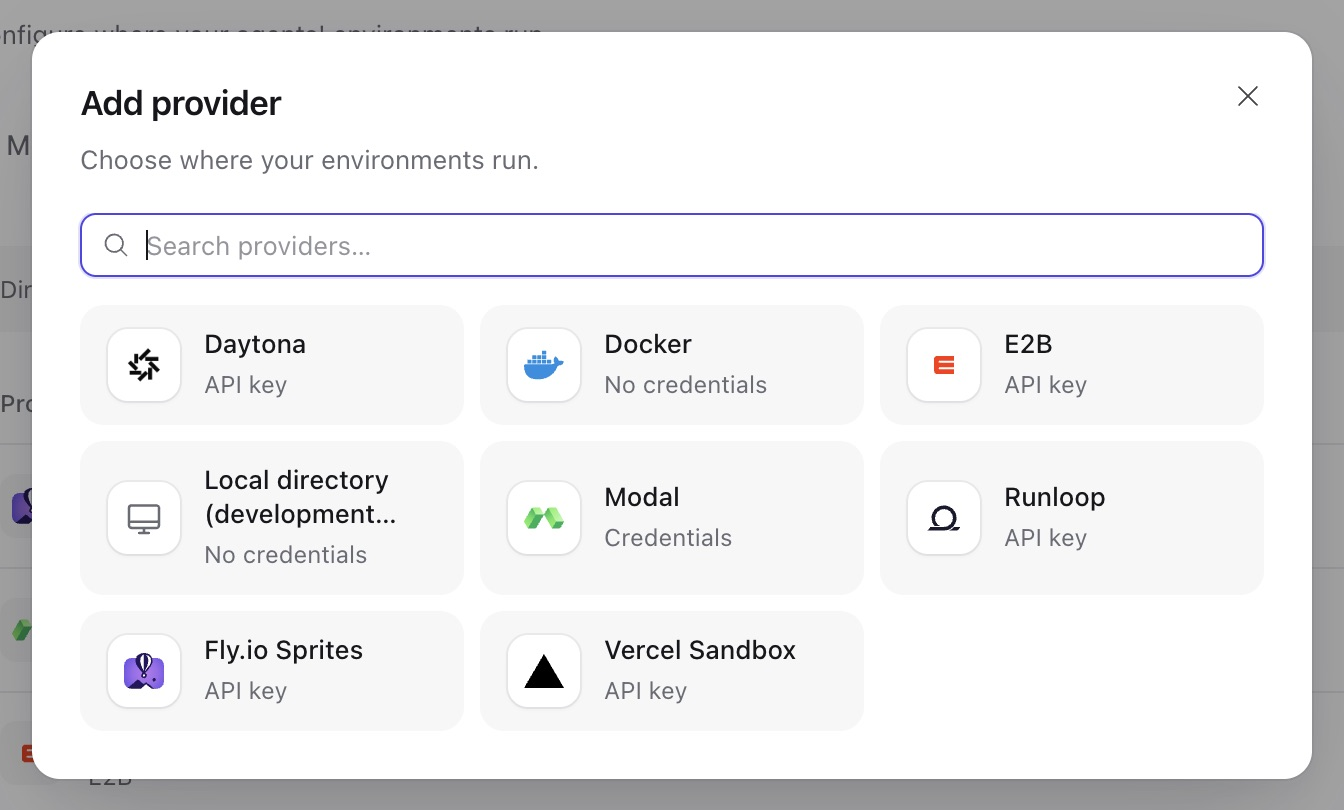
Add an environment provider under Workspace settings → Providers → Environment (requires workspace write permission):
- Choose a runtime (Docker, E2B, Daytona, Modal, Vercel, Sprites, Runloop, boxd, or Local) and enter its credentials.
- Save and leave the provider enabled.
- For Docker, click Test connection to verify Engine access.
For Cloudflare Containers, select Cloudflare Containers, enter your Account ID and API token, and click Deploy provider.
- See the provider guide for backend-specific setup and the configuration reference for recipe fields.
- API clients manage providers at
/api/v1/environment-providersand inspect schemas atGET /api/v1/provider-types/environment. - Remote Docker engines must pass the deployment's outbound policy, and host bind mounts are restricted to
environments.docker_mount_roots.
Templates
Create a template and attach it to an agent:
- Open Environments → Templates → Create template and name it (for example, Python sandbox).
- Select a provider, set CPU/memory limits and idle policies, and save.
- Open your agent, enable Files and Shell, select the template as Default environment template, and save.
- Start a conversation and ask the agent to write
hello.txt, then read it back in a follow-up message to verify persistence.
When a thread has no workspace mount, Service reserves an instance from the agent's default_environment_template_id (or reuses default_environment_id) and prepares it on first use.
Create a template via API:
curl -sS -X POST "$A13N_URL/api/v1/environment-templates" \
  -H "Authorization: Bearer $A13N_API_KEY" \
  -H "Content-Type: application/json" \
  -d '{"name":"Python sandbox","provider_id":"eprov_...",
       "config":{"recipe":{"cpus":2,"memory_gb":4},
                 "stop_after_seconds":1800,"delete_after_seconds":604800}}'
This stops idle instances after 30 minutes and deletes them after 7 days (set either to null to disable). Idle-policy updates apply to existing instances; recipe changes apply to new instances.
Default environment variables
Add non-secret command defaults in the template's Environment variables (config.recipe.environment):
{"environment":{"APP_MODE":"agent","TOOL_ENDPOINT":"https://tools.example.com"}}Commands inherit these values and can override them per run via execution policy. Store secrets in egress credentials; template variables hold readable run configuration.
Docker image versions
When recipe.image is omitted, Service uses its reviewed ghcr.io/converge-ai-labs/a13n-sandbox image:
| Service build | Default tag |
|---|---|
| Stable or RC | 0.8.3 |
Source (0.0.0, including local suffixes) or .devN | dev |
Set an explicit tag or digest to pin another image, and use pull_policy (if_missing or never) to control pulls. Existing instances keep their resolved image until recreated.
Instances
Inspect instances under Environments → Instances or via GET /api/v1/environments.
| Status | Meaning |
|---|---|
reserved | Allocated to a thread; starts on first use |
creating, starting | Provisioning or resuming |
ready | Available for runs |
stopping, stopped | Paused with files retained; resumes on next run |
deleting, deleted | Retired; select another instance |
If a provider reports environment_lost on a template-backed workspace mount, the next run automatically creates a fresh replacement from the same template. Set "auto_recreate_lost_environment": false on the session if your app requires the original disk.
Reserve a managed environment
Create an instance ahead of time to inspect it or share it across threads:
curl -sS -X POST "$A13N_URL/api/v1/environments" \
  -H "Authorization: Bearer $A13N_API_KEY" \
  -H "Content-Type: application/json" \
  -d '{"template_id":"envtpl_...","name":"Shared data"}'
For an E2B template, select existing volumes in Create environment or pass "recipe_overrides":{"volume_mounts":{"/data":"project-123"}} in the request. Each key is an absolute path inside the sandbox. Omit the override to inherit template mounts, or pass an empty map to clear them. Automatic replacements keep your selection. To use the files after deleting an instance, mount the same volume on a new one. The E2B account must have Volumes enabled.
For a Daytona template, select an existing volume in Create environment or supply this fragment in the create request. Use a ready Daytona volume ID and an absolute path inside the sandbox. The optional subpath mounts one folder from the volume. Omit volumes to inherit the template's mounts, or pass [] to clear them. Replacements retain the instance selection. After deleting the sandbox, mount the same volume and subpath on a new one to read the files again.
{
  "recipe_overrides": {
    "volumes": [
      {
        "volume_id": "<daytona-volume-id>",
        "mount_path": "/data",
        "subpath": "projects/a"
      }
    ]
  }
}
For a Modal template, select existing volumes by name in Create environment or send the following override. The provider looks up names in its configured Modal environment. mount_path is the directory in the sandbox. Use sub_path to mount a directory inside the volume and read_only: true for read-only access. Omit volumes to inherit template mounts or send [] to clear them. Resume and automatic replacement reuse the instance selection. After deletion, mount the same volume and subdirectory on the next instance to read the saved files.
{
  "recipe_overrides": {
    "volumes": [
      { "volume_name": "project-files", "mount_path": "/data", "sub_path": "/projects/a" }
    ]
  }
}
For a boxd template, select an existing disk by ID in Create environment or pass the override below. Use a disk in the provider’s region that is free to attach. Each disk can attach to one machine at a time. Stopping the machine keeps the disk attached. After deleting the machine, mount the same disk on a new instance to read its files. Omit volumes to inherit the template mounts or pass [] to clear them. Templates with from_snapshot cannot attach disks at creation.
{
  "recipe_overrides": {
    "volumes": [
      {
        "disk_id": "<boxd-disk-id>",
        "mount_path": "/home/boxd/data",
        "read_only": false
      }
    ]
  }
}
Stop, rename and delete
Send the environment's current ETag in If-Match (requires write):
| Operation | Effect |
|---|---|
PATCH /api/v1/environments/{id} with {"name":"New name"} | Rename the instance |
POST /api/v1/environments/{id}/stop | Stop a supported managed instance while keeping files |
DELETE /api/v1/environments/{id} | Destroy a managed instance or remove an external registration |
Finish active runs and remove thread mounts before deleting an instance.
Mount environments on a thread
Attach an existing instance to a thread using the thread's ETag:
curl -sS -X POST "$A13N_URL/api/v1/threads/$THREAD/environments" \
  -H "Authorization: Bearer $A13N_API_KEY" \
  -H "Content-Type: application/json" -H "If-Match: $THREAD_ETAG" \
-d "{\"name\":\"data\",\"environment_id\":\"$ENVIRONMENT\"}"workspacemounts at/workspace; named mounts (such asdata) mount at/mnt/data.- Remove a mount with
DELETE /api/v1/threads/{thread_id}/environments/{name}. - By default (
lazy_environment: true), reserved or stopped mounts prepare on first use. Pass{"options":{"overrides":{"lazy_environment":false}}}to prepare all mounts before execution. - Forks share mounts unless
fresh_environmentsis set; async subagents follow their edge's environment policy.
Reuse an instance with a project directory
In Console, choose Reuse existing (new chat) or Environments and memory → Add environment (existing chat) and optionally set Working directory (working_directory in the API). Relative paths and shell commands start in that directory. Multiple threads can share one instance in different directories, though they share the same OS process and filesystem space.
Run-only environment selection
Override the primary workspace mount for a single run without changing the thread's saved mounts by passing options.environment:
{"mode":"fresh","template_id":"envtpl_..."}{"mode":"existing","environment_id":"env_..."}Pass {"mode":"none"} (or select No primary environment) to skip workspace for that run while keeping named mounts.
Connect your own machine
Connect a client computer
Use outbound Envd when your computer can reach Control over HTTPS/WSS but Service workers cannot dial your computer.
From Console (recommended): Open Environments → Instances → Connect my computer, install the macOS launcher (or run the printed terminal command), enter the verification code, and approve.
From CLI / API: Run a13n-envd connect-service (see Connect to Service), or pre-register with POST /api/v1/client-environments?workspace_id=…:
{
  "device_id": "dev-example",
  "name": "Laptop",
  "default_working_directory": "/Users/example/project",
  "permission_ceiling": {"operations": ["environment.file.list", "environment.file.read_text"]}
}
Save the returned token in a private file (0600) and run Envd with A13N_ENVD_TRANSPORT=reverse_websocket, A13N_ENVD_REVERSE_WS_URL, and A13N_ENVD_REVERSE_WS_CREDENTIAL_FILE. Users with workspace run permission can select the connected computer; press Ctrl+C in Envd to disconnect.
Register an external target
If Service workers can reach your computer directly over HTTPS (or loopback HTTP):
- Run an HTTP Envd daemon with a stable device ID and token.
- Allow the endpoint in the outbound policy.
- Register it with workspace
writepermission:
curl -sS -X POST "$A13N_URL/api/v1/environments" \
  -H "Authorization: Bearer $A13N_API_KEY" \
  -H "Content-Type: application/json" \
  -d '{"endpoint":"https://build-box.example.com:8443","token":"YOUR_ENVD_TOKEN","name":"Build box"}'
External HTTP targets are private to the registering principal. Rotate the token or endpoint with PATCH /api/v1/environments/{id} and If-Match.
Advanced options
Kubernetes sandboxes
Kubernetes runs each instance as a Pod with Envd in a designated container.
- Have your operator configure
environments.kubernetes_clusters(or use the Helm opt-in in Kubernetes operator configuration). - Create a Kubernetes provider in Workspace settings → Providers → Environment, pick the cluster profile and namespace, and click Check connection.
- Build and push (or
kind load) a matchinga13n-sandboximage:
make image-sandbox SANDBOX_IMAGE=a13n-sandbox:local
kind load docker-image a13n-sandbox:local --name my-cluster- Create a template in Console (or via API
config):
{
  "recipe": {
    "execution_container": "envd",
    "envd_launcher": "non_root",
    "connection": "direct",
    "pod_template": {
      "spec": {
        "restartPolicy": "Never",
        "containers": [{"name": "envd", "image": "a13n-sandbox:local"}]
      }
    }
  },
  "reclamation": {
    "idle_delete_seconds": 1800,
    "preparation_seconds": 600,
    "failed_retention_seconds": 3600
  }
}- Startup mode (
envd_launcher):non_root(default) complies with Restricted Pod Security (UID/GID 1000,inheritegress, no desktop/sudo);rootrequires a namespace allowing root containers. - Connection:
directconnects to the Pod IP;port_forwarduseskubectlfor local debugging. - Storage & diagnostics: Add persistent volumes with
recipe.storage, inspect Pod events and logs viaGET /api/v1/environments/{id}/kubernetes/diagnosticsand/kubernetes/logs, or postpone idle deletion withPUT /api/v1/environments/{id}/debug-hold.
Outbound WebSocket for managed sandboxes
Set execution: "envd_ws" in a Docker, E2B, Daytona, Modal, Sprites, or Vercel template so the sandbox's Envd connects outbound to Control without exposing an inbound HTTP port. Configure server.public_url as an HTTPS origin reachable from the sandbox with WebSocket forwarding enabled (standalone Console desktop preview requires envd_http).
Envd installation and upgrades
Managed recipes accept envd_management:
| Value | Ownership |
|---|---|
managed | Service installs its pinned Envd release and restarts it on create, resume, or upgrade |
preinstalled | You provide Envd and its startup command; Service only checks readiness |
Automatic preparation and official Docker images default to managed; custom images, templates, and snapshots default to preinstalled. Upgrading a managed instance ends active Envd sessions and processes; if an upgrade fails, use Retry preparation (POST /api/v1/environments/{id}/retry-creation).
HTTPS credentials in commands
To inject secrets into HTTPS requests without exposing real tokens in environment variables, create a workspace egress credential and reference it in the session configuration:
{
  "egress_mode": "controlled",
  "egress": {
    "destinations": { "mode": "allowlist", "hosts": ["api.github.com"] },
    "secrets": [
      {
        "env": "GH_TOKEN",
        "credential_id": "ecred_your_credential_id",
        "inject_hosts": ["api.github.com"]
      }
    ]
  }
}
Attach this policy via an agent's default_session_configuration, a thread binding (PUT /api/v1/threads/{thread_id}/session-bindings/{environment_id}/{name}), or options.environment.session_configuration. Envd exposes a placeholder in $GH_TOKEN and substitutes the real secret only in HTTPS headers sent to inject_hosts.
Envd settings
Every template includes an Envd settings panel (API recipe.envd) to tune device/session concurrency limits, file/output sizes, and session timeouts:
{
  "envd": {
    "limits": {
      "max_concurrent_file_transfers": 32
    },
    "idle_timeout_ms": 3600000
  }
}
Settings freeze when an instance is created; create a new instance to apply template changes.
Computer Use